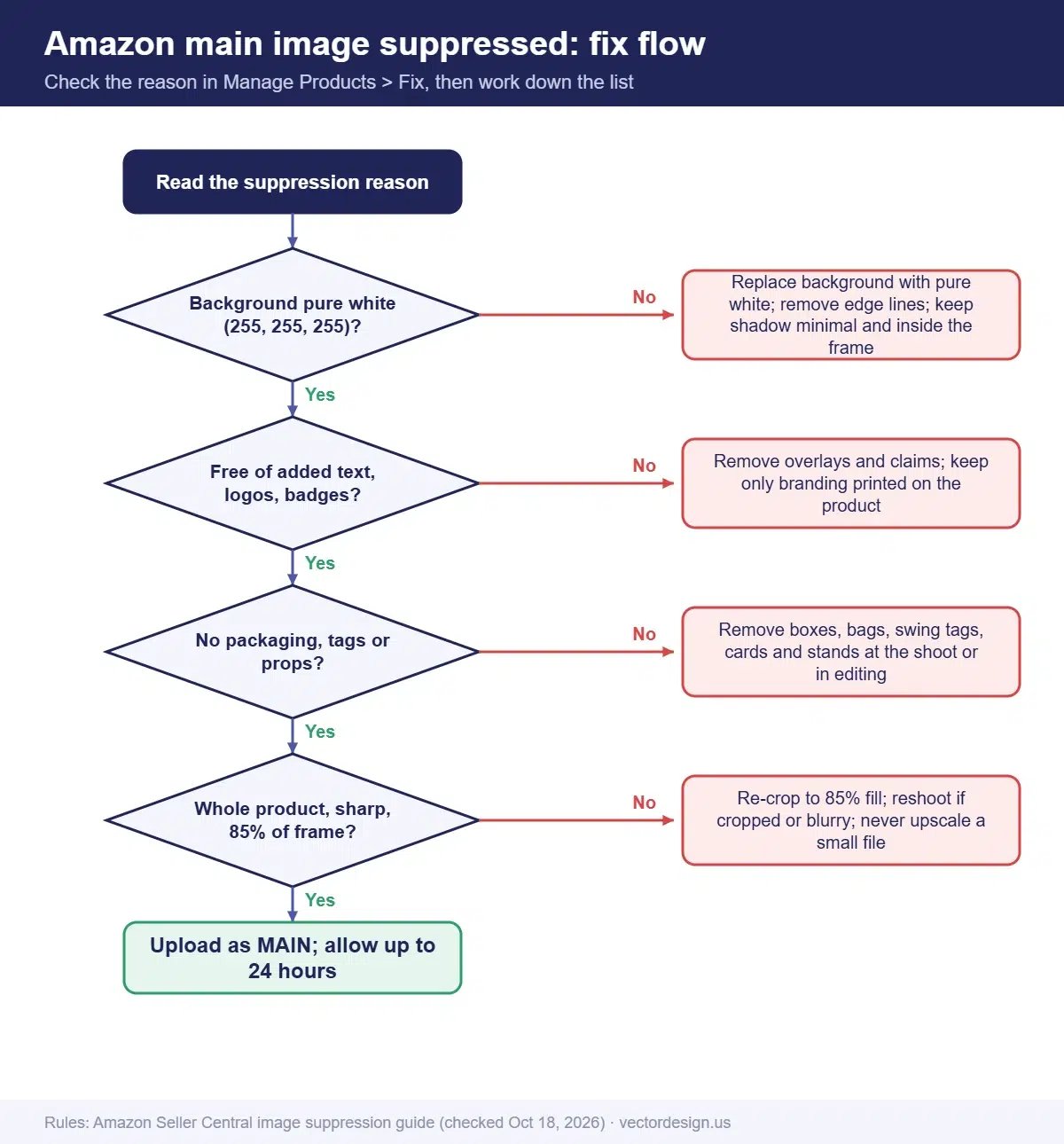
Short answer: “Amazon main image suppressed” means your first photo breaks a main image rule, so Amazon can hide the listing from search until you upload a compliant one. Common causes are a background that is not pure white (RGB 255, 255, 255), added text or logos, packaging or tags, props, cropping, blur, or a product under 85% of the frame.
Key takeaways
- Find the exact reason first: Manage Products, Fix tab, or the Content compliance issues report under Submission status.
- Amazon’s suppression guide lists text and graphics, non-white background, missing image, extra items, cropping, packaging and tags, propping, blur and small product as main image reasons.
- A logo printed on the product is part of the product. The rule targets text and graphics added to the photo.
- Pure white means RGB 255, 255, 255 across the whole background, with only minimal shadows that do not reach the frame edge.
- Replace the MAIN image rather than deleting it, and allow up to 24 hours for the new image to show.
On this page
- What does “main image suppressed” mean on Amazon?
- How do you find the exact reason?
- What causes main image suppression, and how do you fix each one?
- Why is my main image flagged when the logo is printed on the product?
- How do you fix “product in packaging or brand/swing tags”?
- How do you check that the background is pure white?
- How do you upload the replacement image?
- How do you stop suppressions before they happen?
- Frequently asked questions
- Sources
What does “main image suppressed” mean on Amazon?
It means Amazon’s image checks found a problem with the MAIN image, the photo shown in search results and first on the detail page. Amazon’s product image guide says that if no main image meets the requirements, the listing may be removed from search until a compliant image is provided. The product still exists, but shoppers cannot find it through search, which is why this warning needs a fast fix.
Suppression is different from an upload error. An upload error, such as a wrong file format, stops the file at the door. A suppression means the file uploaded but the picture itself breaks a content rule.
How do you find the exact reason?
Start from Amazon’s own report, not from guesswork. The fix for a gray background is very different from the fix for a hang tag.
- In Seller Central, open Manage Products and go to the Fix tab. Amazon’s image suppression page says this is where listings removed from search for image issues appear.
- For file-level detail, open Submission status and choose the Content compliance issues report type.
- Note the reason text for each ASIN. Copy it into a sheet with the ASIN and the current image file name.
- Group the ASINs by reason. Ten listings with the same background problem can be fixed in one editing batch.
If the message reads “We believe the main image has your product in packaging or brand/swing tags,” you already know the cause. Other messages are shorter, so match them to the table in the next section.
What causes main image suppression, and how do you fix each one?
Amazon publishes a list of suppression reasons. The table below pairs each main image reason with the edit or reshoot that solves it.
| Amazon’s reason | What it means | How to fix it |
|---|---|---|
| Text, logo, graphics or watermarks | Something was added to the photo that is not part of the product | Remove overlays, badges, borders and watermarks; keep the product’s own printed branding |
| Non-white background | The background is not RGB 255, 255, 255, or there is a frame or line at the edge | Replace the background with pure white; remove borders; keep shadows minimal and inside the frame |
| Image missing | No main image, or the wrong one | Upload a compliant image with the MAIN variant code |
| Additional items | Extra objects that are not allowed for the product type | Take out anything the buyer will not receive |
| Cropped product | Part of the product is cut off | Reshoot or re-crop so the whole product is in frame |
| Product in packaging, or brand or swing tags | Box, bag, case, hang tag or label tag is visible | Remove them at the shoot, or edit them out if the product is fully visible |
| Propping | Props inside, around or covering the product | Remove stands, stuffing, cards and holders that are not part of the product |
| Blurriness or pixelation | The image is soft or jagged | Reshoot sharp, or export a larger original; do not upscale a small file |
| Product too small | The product does not fill enough of the frame | Crop so the product covers at least 85% of the image |
Amazon’s guides also cover category rules. No mannequins on main images; shoes go in as one shoe pointing left, turned 45 degrees; adult clothing goes on a model who is standing. If you sell in those categories, check those lines first.
Why is my main image flagged when the logo is printed on the product?
Usually because the logo looks added, even though it is not. Amazon’s rule on text, logos, graphics and watermarks prohibits graphics that are not part of the product, or that look pasted into the photo. Branding that is manufactured on the item is part of the product.
Sellers still report it in older threads too. In one Seller Central forum post from about six years ago, a seller with a logo branded on the product wrote: “It would be impossible to upload a main image without the logo…” In practice, these steps lower the chance of a false flag:
- Shoot the product so the logo reads as part of the surface. Follow the product’s curve and lighting, rather than a flat, perfectly frontal view that can look like a sticker.
- Remove glare on the logo, so it does not look like a bright overlay.
- Avoid composites. Do not paste a sharper logo onto the photo, even to fix blur. That creates exactly the pasted graphic the rule bans.
- Try another angle. A three-quarter view often shows the product’s shape and makes the logo look physical.
- Keep packaging, tags and cards out, so the only text in the frame is the product’s own.
How do you fix “product in packaging or brand/swing tags”?
Take the product out of its packaging and remove every tag before the main image is shot. Amazon’s packaging page says no packaging elements, including boxes, bags or cases, should appear in the main image. Its product image guide allows packaging only when it is an important product feature, such as a carrying case or a gift basket.
Common triggers we see in files sent for editing:
- Swing tags on clothing, bags and toys.
- Jewelry photographed on a display card or a gift box insert.
- Products still inside a clear plastic bag.
- Price stickers and barcode labels on the base.
If the product is fully visible, these can be removed in editing. If the tag hides part of the product, a reshoot is the cleaner fix.
How do you check that the background is pure white?
Measure it. An off-white background looks white on its own screen and gray beside a compliant listing. Use a color readout, not your eyes.
- Open the image in Photoshop.
- Choose the Color Sampler tool and click several background points: all four corners, the area under the product, and next to the edges.
- Open Window > Info to read the RGB values for each sampler.
- Every background point should read 255, 255, 255. Values such as 248 or 252 count as non-white.
- Check the shadow. A faint shadow near the product is acceptable; one that touches the image border, or falls on a backdrop behind the item, is not.
- Look along the image border for thin lines, frames or leftover backdrop. Amazon treats an edge line or frame as a non-white background.
- Export as JPEG in RGB at 1,000 px or more on the longest side, so zoom works.
Steps 1 to 4 find the problem. Fixing it cleanly is harder: a quick background fill can leave a halo around hair, fur, glass or chain, and a hard edge looks cut out. That is where many sellers stop doing it themselves.
Main image still getting flagged?
We edit your photo to Amazon’s main image rules: pure white background, tags and packaging removed, product sized to the frame, so you can upload a compliant MAIN image.
From $0.50 per image for white background main images. A firm price follows by email once we have checked the photos.
How our production team checks this
- Background values are read with a color readout at several points, never judged by eye.
- We look for tags, stickers, packaging and props around and under the product.
- We check that the product fills the frame and that no part of it, or its shadow, touches the edge.
- We name exports with the ASIN and the MAIN variant code when the client sends ASINs.
- A second person reviews each image against the suppression reason the client reported before delivery.
How do you upload the replacement image?
Replace the main image rather than deleting it. Amazon recommends this, because every ASIN needs a main image.
- Upload the corrected file with the MAIN variant code in Image manager, or in bulk with a file name such as ASIN.MAIN.jpg.
- Wait. Amazon says a new image can need up to 24 hours to show on the detail page.
- Re-check the Fix tab after that window. If the reason is still listed, compare the new image against the table again.
- Remember that Amazon picks images from several sellers on shared listings, so your upload may not be the one displayed.
How do you stop suppressions before they happen?
Build the checks into your photo workflow, before anything is uploaded. Before Black Friday (Friday, November 27, 2026), check the main image of every promoted ASIN by mid-November. A replacement can take up to a day to show, and a suppressed listing cannot be found in search during the sale. A short pre-upload routine catches most problems:
- Sample the background for 255, 255, 255 on every main image.
- Confirm the item takes up roughly 85% of the frame, with nothing cut off.
- Remove tags, stickers, packaging and props at the shoot.
- Keep sale text and badges off product images entirely. Claims like free shipping are banned in every Amazon product image, not just the main one.
- Save a compliant master file for each ASIN, so a future fix starts from a clean copy.
Our side-by-side marketplace image rules compare the channels, and the Black Friday product photo checklist turns them into a seasonal plan. For hair, fur or glass edges, read when to choose masking over a clipping path. Our pillar guide to editing product photos covers the full workflow.
Frequently asked questions
How long does an Amazon image suppression last?
Until a compliant main image is in place. Once you replace it, give it up to a day; Amazon quotes 24 hours for new images to show.
Is a logo on my product allowed in the main image?
Yes, if it is part of the actual product. Amazon’s rule prohibits text, logos and graphics that are not part of the product or that look pasted into the photo.
Can I show my product on a gift card or display card in the main image?
Usually not. Amazon wants the main image to show the product itself, without packaging unless the packaging is an important feature, such as a carrying case or gift basket. A necklace pinned to a message card is a common trigger. Photograph the item alone on white and show the card in a secondary image.
Why does Amazon say my background is not white when it looks white?
The background must measure RGB 255, 255, 255. Light gray values such as 250 look white on screen but fail the check. Measure with a color sampler.
I fixed the image and it is still suppressed. What now?
Wait up to 24 hours, then re-check the Fix tab and the Content compliance issues report. If the same reason shows, compare the new file with the table above: near-white values, a shadow touching the edge or a tag in the frame are easy to miss.
Fix suppressed main images in one batch
Share the ASIN list with the current photos, and we email a firm price for compliant replacements.
From $0.50 per image for white background main images.
- Exact quote by email before any work starts
- Prepayment by PayPal, Visa or Mastercard
- 24-hour standard delivery, rush from 6 hours (extra charge may apply), bulk timing confirmed after file review
- 2 free revisions and a 100% money-back guarantee
Sources
- Amazon Seller Central, Product image guide: sellercentral.amazon.com (checked October 18, 2026)
- Amazon Seller Central, Image suppression: sellercentral.amazon.com (checked October 18, 2026)
- Amazon Seller Central, Text, logo, graphics and watermarks: sellercentral.amazon.com (checked October 18, 2026)
- Amazon Seller Central, Non-white background: sellercentral.amazon.com (checked October 18, 2026)
- Amazon Seller Central, Product not outside of packaging or has packaging tags: sellercentral.amazon.com (checked October 18, 2026)
- Amazon Seller Central, Product too small: sellercentral.amazon.com (checked October 18, 2026)
- Amazon Seller Central forum (EU), seller thread on logo-related suppression (quoted): sellercentral-europe.amazon.com (checked October 18, 2026)
- Julieanne Kost, The Eyedropper, Color Samplers and Info panel in Photoshop: jkost.com (checked October 18, 2026)
Drafted with AI assistance and checked by our team against the sources listed above on October 18, 2026.