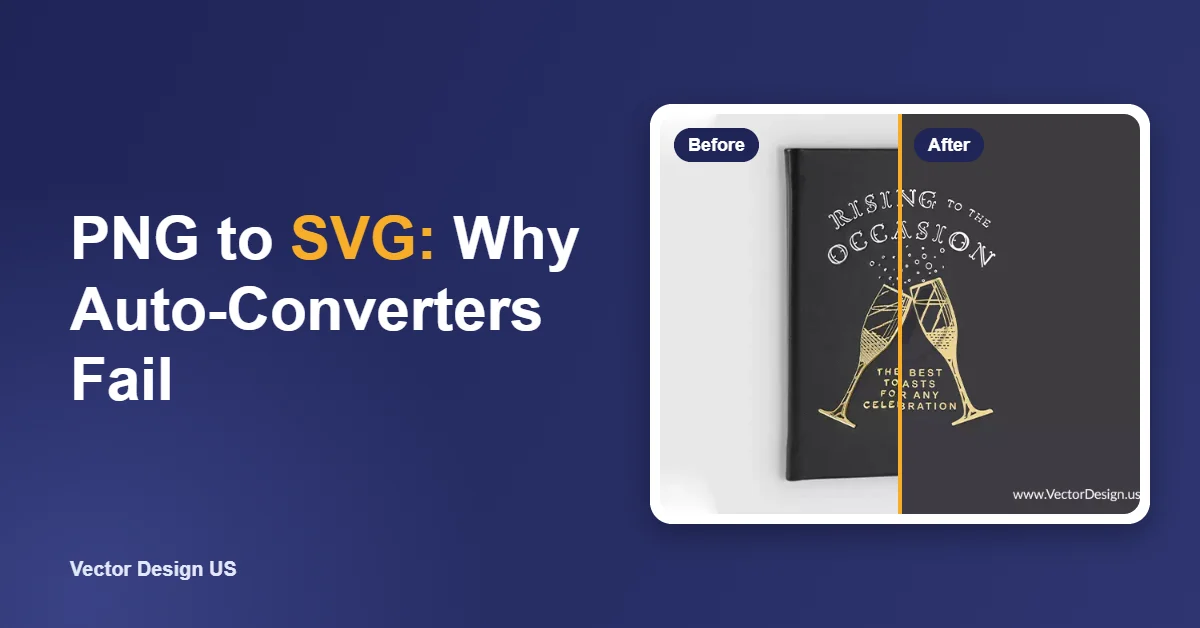
Short answer: a PNG converted to SVG often fails on a Cricut, laser or screen press because the converter guessed the shapes from pixels. Typical results are cut lines around every speck, broken letters, open paths, gradients split into dozens of color steps and thousands of tiny nodes. Cricut Design Space also rejects SVGs with more than 5,000 paths. A production-ready SVG has closed, simplified paths, one shape per color, no stray pieces, and text and details big enough for the material.
Key takeaways
- Most problems come from the source: small, blurry or shaded PNGs give converters too little to work with.
- In Design Space an SVG cuts exactly as drawn, so every speck and gap becomes a cut.
- Cricut’s help page says SVGs with more than 5,000 paths cause an upload error.
- Lasers need the right line types: single lines to score or cut, filled shapes to engrave.
- Screen printing needs a few solid spot colors, not a gradient sliced into many shades.
Why your PNG to SVG is not working in Cricut Design Space
Inside a PNG there are only colored squares, called pixels. An SVG for cutting is a set of outlines the blade will follow. An automatic converter has to decide where every outline goes by reading the pixels, and on anything other than a crisp, flat graphic, it guesses.
Cricut’s help article on uploading images into Design Space explains the difference in how the two types are handled. Raster files such as PNG and JPG upload as a single layer, and you mark what to keep with tools like Select, Erase and Reduce Colors. Vector files such as SVG and DXF arrive with their cut paths already defined. That second point is the catch: Design Space trusts the SVG, so whatever the converter drew, the machine cuts.
Common auto-converter problems and how to fix them
| What you see | Why it happens | How to fix it |
|---|---|---|
| Cut lines around tiny specks | JPEG noise or anti-aliased edges traced as shapes | Delete small shapes, or remove noise before converting |
| Letters cut apart or filled in | Text too small or blurry for the converter to read | Retype the text in a real font, or redraw the letters |
| Upload error in Design Space | More than 5,000 paths in the SVG | Merge shapes, remove fragments, simplify paths |
| Jagged or wobbly edges | Each pixel step traced as a corner | Simplify paths, or redraw the curves by hand |
| Gradient split into many layers | Shading broken into bands of color | Flatten to solid colors, or use Print Then Cut |
| Pieces lift off during weeding | Thin slivers and needle-thin points | Thicken thin parts, merge slivers into neighbors |
| Shapes cut twice or double outline | Overlapping or duplicate paths | Remove duplicates, weld or unite overlapping shapes |
| Image cuts as one solid block | White background traced as a shape | Delete the background shape before saving |
Cut lines and weeding
Every closed shape in the SVG becomes a cut. If the converter traced the soft pixel edge between two colors, you may get a thin ring around each letter, which is very hard to weed. The fix is a file where each color is one clean shape with a crisp edge, and where tiny gaps between colors are either closed or made wide enough to weed.
Open paths
An open path is a line whose ends do not meet. A cutter will still follow it, but it will not separate a piece from the sheet, and fill colors may look wrong on screen. Auto-traced files sometimes contain open paths where the outline of a shape was broken in tracing. Join the end points, or redraw the shape so it closes.
Too many nodes
Each anchor point is a place where the blade or laser changes direction. A traced circle may have hundreds of points instead of four, which makes the machine slow down or shudder on the curve. Path simplify tools help, but on lettering they can also distort the shapes. On logos, a hand redraw is often faster than fixing a bad trace.
Gradients and shading
A cutting machine cuts one color of vinyl at a time, so a gradient has no direct equivalent. Converters approximate it by stacking bands of slightly different colors, which gives you a dozen layers to cut and weed. Either reduce the design to a few flat colors or print it with Print Then Cut, which Cricut lists as the Flat Graphic upload type.
Small text and fine detail
Even a perfect file cannot cut what the material cannot hold. Very small letters, thin script and fine outlines tear in vinyl and burn away on a laser. Make text and thin lines larger, thicken them, or simplify the design for the size you will actually make.
Need a cut-ready SVG from your PNG?
Send your PNG and tell us the machine and material. We redraw it by hand with closed, clean paths, from $7 per image, with an exact quote by email first.
What a production-ready SVG needs for each use
The same design may need three slightly different SVG files depending on where it goes.
Cricut Design Space and other vinyl cutters
- Closed paths for every piece you want to cut out.
- One shape per color, stacked or grouped by layer, so each layer is one cut.
- No background shape unless you mean to cut it.
- Under 5,000 paths. Cricut’s help page states that SVGs with more paths cause an upload error.
- Lines meant for pens set as draw lines. Cricut’s article notes that SVG vectors come in as cut lines, so marks or details for a pen must be changed to Draw in Design Space.
- Weedable sizes. Avoid hairline gaps and tiny islands.
Laser cutting and engraving
- Cut and score lines as single, unfilled paths with no duplicates on top of each other. A duplicated line is cut twice, which can scorch the edge.
- Engraved areas as filled shapes. Fills are rastered back and forth, while strokes are usually cut or scored. How your software sorts them depends on its settings, so check its color or line-type rules.
- Allow for kerf. The beam removes a little material, so parts that fit together, such as inlays and slots, may need an offset.
- Single-line text when you want a fine engraved line instead of an outlined letter.
Our laser engraving artwork service prepares files to these rules, delivered as SVG, DXF, AI or PDF.
Screen printing
- Solid spot colors, one shape per screen, no near-duplicate shades.
- Gradients turned into planned halftones or removed, never left as color bands from a converter.
- Fonts converted to outlines so the printer’s computer does not substitute them.
- Underbase and trapping for dark garments, which your printer may add or ask you to supply.
For printers who need separated files, see our screen printing art services.
| Requirement | Cricut and vinyl | Laser | Screen printing |
|---|---|---|---|
| Path type | Closed filled shapes | Single lines to cut or score, fills to engrave | Closed filled shapes |
| Colors | One per layer | Colors often map to operations | One per screen, spot colors |
| Gradients | Avoid, or use Print Then Cut | Engrave as grayscale raster, or avoid | Halftones only if planned |
| Small detail | Must be weedable | Must survive the beam width | Must hold in the mesh |
| Common format | SVG (DXF on desktop) | SVG, DXF, AI, PDF | AI, EPS, PDF |
When to fix the SVG yourself and when to redraw
Fix it yourself
- Free with Inkscape, or with tools inside Design Space for simple PNG uploads
- Works for bold, flat clipart with few colors
- You need to delete specks, join paths and simplify nodes
- Test-cut on scrap before using good material
Have it redrawn by hand
- Every path drawn by a person, closed and simplified
- Exact quote by email before you pay, from $7 per image
- Usually back within a day; urgent files can take 6 hours, and a rush fee may be added
- Two rounds of changes at no cost, and your money back in full if we cannot get it right
If the PNG is small, blurry, shaded or full of text, the cleanup usually takes longer than a redraw. For background on the format, see our guide on what an SVG file is.
Frequently asked questions
Why does my SVG upload to Cricut as one solid block?
The converter probably traced the background as a shape, or merged everything into one path. Delete the background shape in a vector editor, or redraw the design so each part is its own shape.
Why does Cricut say my SVG is too large?
Cricut’s help page says SVGs are limited to 5,000 paths. Auto-traced files often go over that limit because every speck becomes a path. Remove fragments and merge shapes, or start from a cleaner file.
Can I just upload the PNG instead of converting it?
Yes. Design Space accepts PNG and JPG as basic images, and you choose what to keep during upload. That works well for simple, high-contrast images. Multi-color or detailed designs usually cut better from a clean SVG.
Why does my laser cut the same line twice?
Duplicate or overlapping paths are common in converted files. Remove the duplicates so each cut line exists once.
Will an auto-converted SVG work for screen printing?
Sometimes for simple one- or two-color art. Converters often split shading into many near-identical colors, and each one would need its own screen. A screen printing file should have only the colors you plan to print.
What file should I send you?
The largest, clearest version you have. Tell us the machine, the material and the finished size, and we prepare the SVG for that use.
Get an SVG that cuts the first time
Upload your PNG and name the machine and material. Your exact price is emailed before the redraw starts. Hand-drawn PNG to SVG from $7 per image.
Sources
- Cricut Help, How to upload images into Design Space: https://help.cricut.com/hc/en-us/articles/360009556313 (checked October 18, 2026)
Drafted with AI assistance; facts and prices checked against the sources listed above on October 18, 2026.