
DXF vs SVG vs AI for Laser Cutting and CNC: Which File to Send

Short answer: In the DXF vs SVG choice, pick SVG for desktop lasers and laser software such as Glowforge, xTool and LightBurn. Pick DXF for CNC routers and CAD-based shops. Keep AI as your editable master, not the file you send. Whatever the format, the shapes must be closed, text must be outlined, and units must be checked.
Key takeaways
- SVG is the safe default for hobby and small-shop lasers. DXF is the safe default for CNC and CAD workflows.
- A DXF often arrives without its units. Set them on import, or the part comes in at the wrong size.
- Glowforge accepts DXF only for Premium members, and xTool Creative Space does not open AI files at all.
- A traced shape with gaps can only engrave. Closed paths are what give you a cut line.
- Convert text to outlines in every format. LightBurn cannot import embedded fonts, and Glowforge and xTool Creative Space drop live text.
On this page
Which format should you use for laser cutting or CNC: DXF, SVG or AI?
Send SVG to most desktop lasers and DXF to CNC routers and CAD-driven shops. Keep AI as the editable master you export from.
The rule underneath is simple: use the format your machine software reads natively, with every shape kept as a clean vector path.
The three formats come from different worlds. SVG is an open web standard built on paths with Bézier curves. DXF is Autodesk’s exchange format for passing drawings from one CAD program to another. AI is Adobe Illustrator’s native file, great for editing but not universally read by machine software.
That matters right now. Holiday engraved gifts mean ornaments, cutting boards and name tags cut in batches. One bad file can waste a stack of blanks before you notice the problem. Picking the right format, and checking it, is cheaper than recutting.
Unsure whether your artwork is even vector? Check it first with how to tell if a file is vector. For the full workflow from artwork to machine, see the laser and CNC file preparation guide.
How do DXF, SVG, AI and PDF compare?
They all hold vector paths, but they differ in how they store units, curves, colors and text. Those differences decide whether your file imports at the right size and with the right operations.
Swipe the table sideways on mobile →
| Attribute | DXF | SVG | AI | |
|---|---|---|---|---|
| Units | No stored measurement system; set units before import | Size can shift with the DPI setting your software uses on import | Native to Illustrator; must be exported for most machine apps | Page-based; LightBurn, Glowforge and VCarve read it |
| Curves | Exporters may write polylines or splines; some spline options can distort curves | Bézier curves and arcs | Bézier curves | Bézier curves |
| Layers / colors | CAD layers; good for CNC part files | Colors; LightBurn maps colors to layers | Illustrator layers and colors | VCarve puts each page of a multi-page PDF on its own layer |
| Fills | Treat as outlines; plan engrave fills in your laser software | Fill and stroke both supported; Glowforge engraves fills and cuts strokes | Full fill support | Full fill support |
| Text | Convert to outlines | Convert to outlines; xTool Creative Space will not show SVG text | Convert to outlines before export | VCarve extracts text; others may drop fonts |
| File size | Varies with path count and export settings | xTool says complexity comes from curve count, not file size | Carries Illustrator editing data | Varies with embedded content |
| Who uses it | CNC routers, CAD, plasma, VCarve, LightBurn | Glowforge, xTool, LightBurn, Cricut-style cutters | Designers; LightBurn and VCarve can open it | Glowforge, LightBurn, VCarve; print shops |
Want a plain-language primer on the web format first? Read what an SVG file is and how it works.
Why does my traced shape only show an engrave option?
Usually because the traced outline has gaps or open paths. Software can only cut a shape it can follow from start to finish. An open or broken outline gets treated as an engrave area instead.
This comes up often on the Glowforge community forum. A member traced a drawing and saw only engrave, with no cut option. The likely cause offered there was simple: the figure’s edges were not closed, so the trace never found a continuous border.
Auto-trace tools follow pixels, not intent. Soft edges, JPEG noise and thin lines all leave tiny breaks. The result also tends to carry hundreds of extra nodes, which slows uploads and makes curves wobble when cut.
Some tools try to patch this. LightBurn’s DXF import has an Auto-Close Tolerance that joins nearby ends on the same layer. That helps with small gaps, but it cannot rebuild a messy outline or guess where a line should go. Converting an image yourself? Our guide to PNG to SVG for Cricut, laser and screen printing covers what tracing can and cannot fix.
Trace left you with open paths and node mess?
We redraw your artwork by hand as closed, clean vector paths with cut and engrave lines separated and ready for your laser or CNC.
From $7 per image · exact quote after file review · 24-hour standard delivery
Which formats do LightBurn, Glowforge, xTool and VCarve import?
LightBurn and VCarve read the widest range of formats. Glowforge and xTool Creative Space read fewer, so SVG is the safest shared choice for lasers.
The table below reflects each vendor’s own documentation, checked 2026-11-15.
Swipe the table sideways on mobile →
| Software | SVG | DXF | AI | EPS | Notes from the vendor docs | |
|---|---|---|---|---|---|---|
| LightBurn | Yes | Yes | Yes | Yes | Not listed | Set DXF units before import. Colors map to layers. |
| Glowforge app | Yes (cut and engrave) | Premium members only | Not listed | Yes (cut and engrave) | Not listed | JPG and PNG engrave only. Outline all text. |
| xTool Creative Space (XCS) | Yes | Yes | No (export first) | Not listed | Not listed | Export other files to SVG or DXF first. Outline SVG text. |
| VCarve (Vectric) | Yes (from V11.5 notes) | Yes | Yes | Yes | Yes | DXF opens at original size. Multi-page PDFs split into layers. |
A few details sit behind those short notes:
- LightBurn. Its DXF import has an Auto-Close Tolerance that joins nearby ends. Use exact palette colors so each operation gets its own layer. It cannot import embedded fonts, so install the font or convert text to paths.
- Glowforge. The app removes text when it lacks the font. Once text is outlined, give it a fill to engrave or a stroke to cut. Thick or styled strokes may not load cleanly.
- xTool. Creative Space only reads its listed formats, so export from your design app first. The newer xTool Studio adds DXF unit detection and an SVG DPI setting.
- VCarve. EPS and AI files land with their lower-left corner at X0, Y0. PDF text and vectors are extracted on import.
One note on VCarve: the current file-types help page lists DXF, DWG, EPS, AI, PDF and SKP. Vectric’s version 11.5 upgrade notes list SVG (including SVG with images) among files that open directly. If you run an older version, send DXF to be safe.
How do I export a clean DXF or SVG from Illustrator?
Outline your text and strokes, close any gaps, then use File > Export > Export As. That one export menu covers both DXF and SVG.
The steps below follow Adobe’s current help pages and Glowforge’s prep guidance.
Clean DXF from Illustrator
- Select all text and choose Type > Create Outlines.
- For strokes you want treated as solid shapes, choose Object > Path > Outline Stroke.
- Zoom in on any gaps and close them with the Join tool by drawing across the break.
- Choose File > Export > Export As and pick AutoCAD Interchange File (DXF).
- In AutoCAD Export Options, set the scale and units to match your artboard. Turn on outline text and, if needed, export selected art only.
- Pick an AutoCAD version in the same dialog. If your CAM or laser software rejects the file, export again with an older version.
- Import the DXF into your laser or CAM software. Measure one known dimension before cutting.
Clean SVG from Illustrator
- Repeat steps 1 to 3 above: outline text, outline strokes, close gaps.
- Choose File > Export > Export As and pick SVG. Check Use Artboards if you want the artboard size kept.
- In SVG Options, set Font to convert to outlines, which Adobe describes as the most compatible choice.
- Raise decimal precision if fine curves look off. Adobe notes this trades file size for accuracy.
- Click Export, then test-import the file and check its size.
How do I export a clean DXF or SVG from Inkscape?
Convert objects to paths, then use File > Save a Copy. That keeps your editable Inkscape SVG intact.
The Inkscape manual suggests this route because exported formats lose some Inkscape-only features.
Clean DXF from Inkscape
- Select text and choose Path > Object to Path.
- For strokes that should become shapes, choose Path > Stroke to Path.
- Use Path > Union or Combine to merge pieces, and Path > Simplify sparingly to remove extra nodes.
- Choose File > Save a Copy and pick Desktop Cutting Plotter (AutoCAD DXF R14).
- In the export dialog, set the base unit to the unit your machine uses. Leave the ROBO-Master spline option off, since Inkscape’s own tracker notes it can distort curves.
- Re-import the DXF and measure a known feature.
Clean SVG from Inkscape
- Repeat steps 1 to 3 above.
- Choose File > Save a Copy and pick Plain SVG, which leaves out Inkscape’s editor data.
- Keep the original Inkscape SVG as your master for future edits.
- Upload the Plain SVG to your laser app and confirm cut and engrave lines appear where you expect.
Which five checks stop a laser or router file from failing?
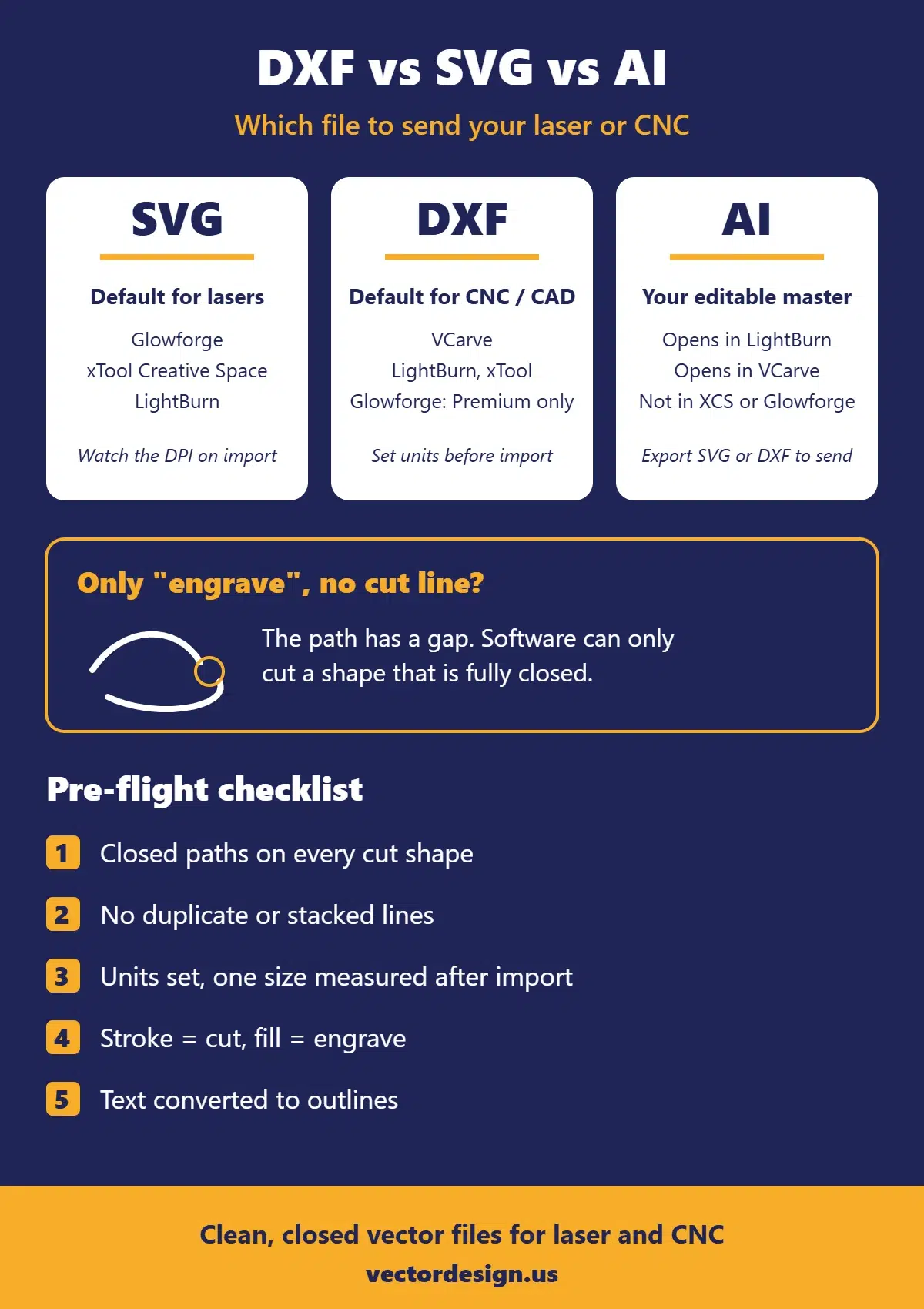
Check five things every time: closed paths, no duplicates, correct units, the right stroke and fill setup, and outlined text. Then sweep for stray points and hidden objects before you send the file.
- Closed paths. Every cut shape must be a closed loop. Open ends usually mean no cut option or a toolpath that stops early.
- No duplicates. Stacked copies of the same line cut twice, which can scorch edges or deepen a cut by accident.
- Units and scale. Set DXF units on import, check the SVG DPI setting, and measure a known feature after import.
- Stroke for cut, fill for engrave. Glowforge’s guidance is to give a fill to engrave and a stroke to cut. In LightBurn, use exact palette colors so each operation lands on its own layer.
- Text to outlines. LightBurn cannot import embedded fonts, Glowforge removes text it cannot process, and xTool Creative Space will not show SVG text.
- Stray points and hidden objects. Delete empty paths, tiny fragments and anything on hidden layers.
What we see in production
- Auto-traced logos often arrive with a fill and an outline stacked on top of each other. On a laser that becomes a double cut around every letter.
- DXF files exported from one program and opened in another frequently come in at the wrong scale, because nobody set units on import.
- Gift orders with names and dates often still carry live text. The font is missing on the machine side, so the lettering silently disappears or swaps.
- Script fonts and thin serifs that look fine on screen tend to break into tiny islands once outlined, which needs manual cleanup before cutting.
Frequently asked questions
Can the Glowforge app open DXF files?
Yes, but only for Premium members, according to Glowforge’s support page. Every account can upload SVG and PDF to cut and engrave. JPG and PNG files can only be engraved. If you are not on Premium, export SVG instead.
Does xTool Creative Space accept AI files?
No. xTool’s help page lists SVG, DXF, PNG, JPG and BMP and says other formats are not supported. Export your Illustrator file to SVG or DXF first, and convert any text to paths before you do.
Why does my DXF import at the wrong size?
A DXF file does not record which units it was drawn in, as LightBurn’s documentation explains. Set the import units to match the original drawing, then measure a known feature. If it is off by a factor of about 25.4, inches and millimeters were mixed up.
Is DXF or SVG better for a CNC router?
DXF is the safer choice for CNC. VCarve opens DXF at its original size, and it is the standard CAD exchange format. Newer VCarve versions also open SVG, but DXF avoids version surprises.
Should I send my AI file to a laser shop?
Send it as a backup, but also export SVG or DXF. LightBurn and VCarve can open AI files, while Glowforge and xTool Creative Space do not list it. Outline text in every version you send.
Send your file, get an exact quote
- Exact quote by email before you pay (PayPal, Visa or Mastercard)
- 24-hour standard delivery; rush from 6 hours
- 2 free revisions
- 100% money-back guarantee
Laser engraving artwork starts from $7 per image.
Sources
Sources checked 2026-11-15.
- docs.lightburnsoftware.com: Creating and Importing Artwork
- docs.lightburnsoftware.com: File Menu
- docs.lightburnsoftware.com: Settings Window (DXF import)
- docs.lightburnsoftware.com: Layer Colors
- support.glowforge.com: Upload Your Own Design File
- support.glowforge.com: Design text is not showing
- support.glowforge.com: Print thick or stylized strokes
- community.glowforge.com: Trace image options
- support.xtool.com: FAQs on Importing Images
- support.xtool.com: Import & Parse Vectors (xTool Studio)
- docs.vectric.com: VCarve Pro File Types
- docs.vectric.com: Import Bitmap / Vectors
- vectric.com: What’s new in VCarve
- helpx.adobe.com: Exporting artwork in Illustrator
- helpx.adobe.com: Connect and trim paths using the Join tool
- inkscape-manuals.readthedocs.io: Exporting to other file formats
- inkscape-ltlnx.readthedocs.io: Path menu
- gitlab.com/inkscape: ROBO-Master spline distortion in DXF R14 export
- gitlab.com/inkscape: DXF14 export base units
- w3.org: SVG 1.1 Paths